
How Hard Disk Sentinel works — install, baseline, act
How it works, in four calm steps
-
1
Install and enumerate
The program detects fixed disks and many USB enclosures—wait for the first poll to finish before judging temperatures.
-
2
Establish a baseline
Note idle temps and attribute values after a week of normal use—future you compares against this, not against forum screenshots.
-
3
Set thresholds
Adjust alerts so they trip on meaningful shifts—avoid notification fatigue on laptops that thermal-cycle all day.
-
4
Act deliberately
When indicators degrade: verify backups, capture SMART exports, run targeted tests, plan replacement—not panic-format.
Self-tests & heavy scans—without wrecking your workday
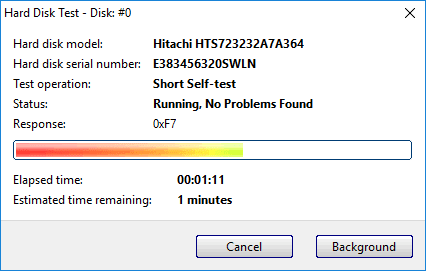
Tests are tools, not competitions. Match depth to suspicion and schedule like maintenance, not like a benchmark flex.
- Short self-test: quick sanity check after cable swaps, travel, or BIOS updates—low disruption, good for weekly rhythm.
- Extended self-test: reads far more surface; schedule overnight on AC power. Pause if you need full disk bandwidth for renders or database restores.
- SSDs: endurance is finite—avoid endless torture loops. Prefer storage guidance plus wear counters; extended patterns when SMART or checksums justify it.
- Laptops on battery: thermal and power caps skew behavior; plug in before judging a marginal test result.